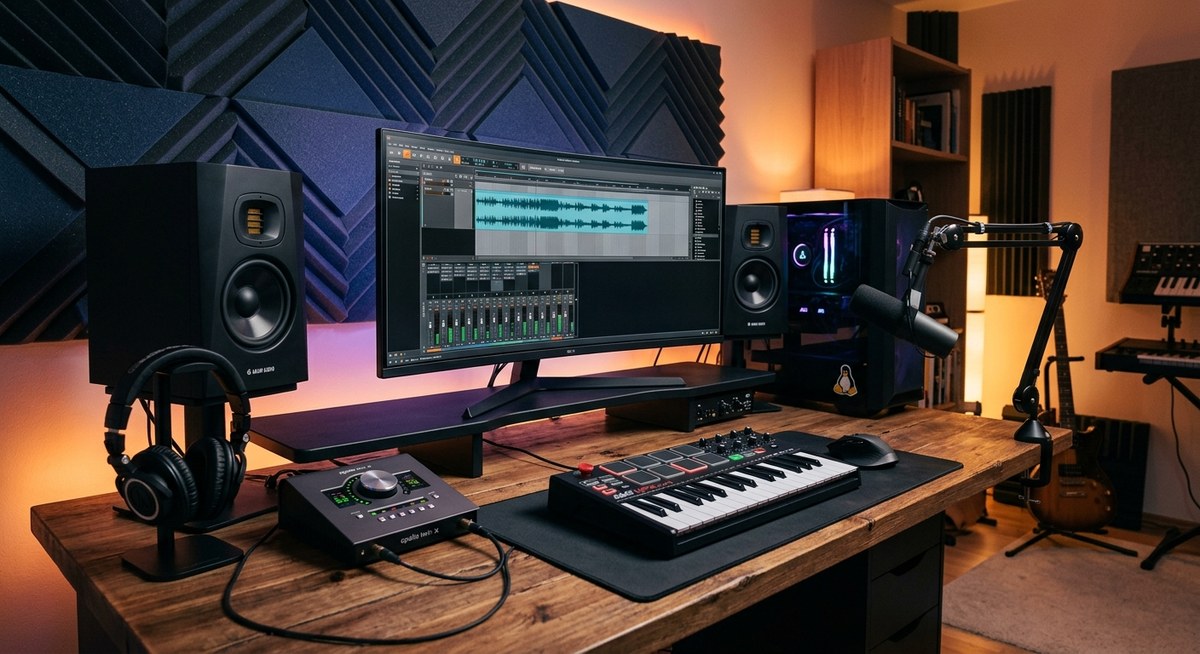
If you are serious about making music on Linux, you want your workstation to feel predictable and responsive every time you press record. The good news is that with the right base system, a tuned kernel, and smart DAW configuration, Linux can offer rock solid low latency and robust stability for long recording sessions. This guide from LinuxMusician.com walks you through practical, battle tested steps to optimize Linux for audio production. Whether you are a solo singer songwriter, a live electronic musician, or a producer running a full mix with plugins, the goal is the same — keep latency low, reduce dropouts, and have your system stay quiet when you press play.
Choosing the right base system for an audio workstation
The first decision is choosing a Linux base that suits music production. Different distributions bring different drivers, out of the box settings, and package ecosystems. Here are common starting points and why they work well for audio work.
- Ubuntu Studio and derivatives
- Pros: Lightweight desktop, easy to install, broad driver support, and good integration with pipewire and low latency kernels.
-
Cons: Rolling updates can occasionally introduce minor breakages; it is wise to test before big sessions.
-
Debians and Ubuntu based systems with RT or low latency kernels
- Pros: Stability and long term support with predictable kernel behavior.
-
Cons: You may need to manually install audio oriented packages and tune some services.
-
KXStudio lineage and PipeWire friendly distros
- Pros: Historically curated with audio in mind, excellent out of the box support for JACK and LV2 plugins.
-
Cons: Some projects may lag on updates; check compatibility with your DAW.
-
Rolling release options for newer audio stacks
- Pros: Access to the latest PipeWire and kernel improvements that improve latency and Bluetooth audio handling.
-
Cons: More frequent updates can require more testing between sessions.
-
Hardware compatibility and driver availability
- Look for distros with solid ALSA and PipeWire support, and easy access to real time kernel packages if you plan to use a real time setup.
Tips to pick a path:
– Start with a distro that offers a low latency kernel or easy kernel switching.
– Ensure PipeWire is available and actively maintained on the chosen distro, as it is the modern backbone for audio in many environments.
– Choose a desktop environment you enjoy, but keep light footed options like Xfce or LXQt in mind for maximum headroom during recording.
– Consider a system that makes it easy to disable or minimize background services during a recording session.
Real time kernel and low latency tuning
Latency is the name of the game when recording and mixing with software. A real time kernel can dramatically reduce scheduling latency and jitter, but it is not always required if you configure your system carefully. Here is how to think about kernel choice and latency tuning.
Do you need a real time kernel?
- If you work with very complex plugin chains, very low buffer sizes, or you experience audible dropouts during heavy sessions, a real time kernel can help.
- If your workflow is light weight or you are using PipeWire with a well tuned stack, a low latency or standard kernel with careful tuning may be sufficient.
- Real time kernels can introduce small, but important, changes to scheduling behavior. Always test a real time kernel with your DAW and plugins before committing to it long term.
How to install a real time kernel or low latency options
- Check your distribution for a real time kernel package. Common choices include:
- linux-image-rt or linux-image-rt-amd64
- linux-image-lowlatency for Debian/Ubuntu based systems
- In Debian/Ubuntu based systems you can often install a prebuilt RT or low latency kernel with apt:
- sudo apt update
- sudo apt install linux-image-lowlatency
- sudo apt install linux-image-rt-amd64 (if available in your repository)
- After installation, reboot and choose the new kernel from the boot menu. Run a quick latency test with your DAW and verify stability.
- If you prefer to patch your own kernel, you can build a PREEMPT RT kernel from source. This is for advanced users and requires careful configuration of your toolchain.
Alternatives and caveats
- PREEMPT RT patches are designed to bring real time scheduling capabilities to the kernel. Not all hardware benefits equally, and some hardware may exhibit different behavior under RT kernels.
- Some users find that a well tuned standard kernel with a conservative CPU frequency governor and careful IRQ isolation provides the best balance for their workload.
Disabling mitigations for maximum torque
- Security mitigations can introduce additional latency. If you choose to test this, do so in a safe environment and only temporarily during testing. Re-enable mitigations for daily use to keep your system secure.
Tuning the system for audio performance
Once the kernel is chosen, the next step is to tune the running system so audio tasks get the CPU time they need, with minimal interference from other processes.
Disable unnecessary services and daemons
Background services can cause unpredictable CPU spikes. Strike a balance between system usability and minimal background load.
- Disable or mask non essential services during recording sessions such as:
- Bluetooth discovery
- Network related services not required for the session
- Unneeded background indexing services
- Use systemctl to disable services temporarily:
- systemctl stop bluetooth
- systemctl stop whoopsie
- For a session based approach you can use a dedicated user space session or a script that disables services when you launch your DAW.
CPU frequency scaling and governor
- Set the CPU governor to a predictable mode during recording. Common choices:
- performance for maximum headroom
- ondemand or schedutil with conservative thresholds for a balance of power and latency
- Tools to adjust:
- cpupower frequency-set -g performance
- Make this change automatic during a session by adding a script that toggles the governor when you launch and close your DAW.
Isolating CPUs and IRQ management
- For experienced users isolating a CPU core for audio processing can reduce latency spikes.
- Steps conceptually:
- Reserve one CPU for audio tasks and run the DAW there
- Isolate that CPU from the general scheduler by using kernel boot parameters such as isolcpus
- Ensure critical audio hardware interrupts are directed to your isolated CPU
- Realizing this setup safely usually requires advanced configuration with grub and boot parameters and is best tested in a controlled session.
IRQ balancing and hardware IRQ routing
- IRQ balancing helps distribute interrupts across CPUs but some users prefer to turn it off for a dedicated audio core.
- If you choose to disable irqbalance for audio sessions, monitor system stability and be prepared to reenable it.
USB and device power management
- USB autosuspend can cause drops on certain interfaces. If you are using USB audio, disable autosuspend for those devices.
- You can edit /sys/bus/usb/devices/*/power/control to disable autosuspend for your audio interfaces.
Disk I/O and storage tuning
- For audio projects, ensure your storage subsystem does not become a bottleneck:
- Use a fast SSD if possible
- Consider disabling fsync during heavy recording if your workflow permits (not recommended for long term data safety)
- Use a separate drive for audio projects if you can
Latency friendly audio stacks
- PipeWire is now widely used as the default audio server in many distros and provides a smoother path for JACK style workflows.
- If you still rely on JACK, ensure your JACK server is configured with appropriate sample rate, frames, and period sizes.
- Use a bridge when necessary to connect JACK clients to PipeWire via the pw_jack tool or the PipeWire JACK compatibility layer.
Audio software stack and DAW configuration
The software stack is the front line in how latency and stability feel while you work. The goal is to have your DAW talk cleanly to the audio layer with minimal overhead.
PipeWire versus JACK and PulseAudio
- PipeWire offers a unified audio core that covers professional needs and consumer level audio alike.
- JACK remains the familiar API preferred by many professional setups. PipeWire can bridge to JACK via a JACK compatibility layer.
- PulseAudio can coexist on the same system but most modern setups route DAW audio through PipeWire to maintain low latency across apps.
- Best practice: install PipeWire and PipeWire Pulse to ensure compatibility with most software while maintaining low latency.
Configuring buffer size and sample rate
- Start with a conservative buffer size such as 256 frames and a sample rate of 44100 or 48000 Hz, then test for stability.
- If you experience crackles or dropouts, increase the buffer slightly or adjust the period size.
- For very demanding plugin chains, a larger buffer can reduce CPU load and crackling while you mix.
Latency measurement and testing
- Tools to measure latency and stability:
- aplay and arecord for simple playback and recording tests
- latencytop for monitoring user space and kernel latency
- separate test sessions in your DAW with consistent project templates
- A practical approach is to record a short test with your DAW and plugins, measure actual round trip latency, and adjust queue settings accordingly.
- Keep a log of settings and results for future sessions.
DAW selection and plugin compatibility
- Ardour is a popular choice on Linux and integrates well with JACK and PipeWire.
- LADSPA, LV2, and VST plugins through bridging layers work in many environments. LV2 remains a robust standard for Linux users.
- Make sure your plugin formats are supported by your chosen DAW and audio stack to avoid performance surprises.
Hardware considerations and driver health
Choosing compatible hardware and drivers makes a large difference in reliability.
Audio interfaces and devices
- USB Audio Class 2.0 devices typically work well with ALSA and PipeWire on many distros.
- FireWire devices may require additional drivers; verify compatibility with your kernel and distro.
- Thunderbolt audio interfaces are supported on many systems but may require additional firmware or module loading steps.
Driver quality and firmware
- Keep firmware and drivers up to date from trusted sources.
- If you experience instability, test with a different USB port or a powered hub to rule out power delivery issues.
- Audio interfaces with dedicated DSP or advanced bus management often benefit from vendor provided tools or boots with minimal drivers loaded.
Troubleshooting common hardware issues
- Dropouts during heavy plugin usage: check CPU usage, buffer, and real time kernel status
- Crackling or pops: inspect latency, IRQ distribution, and driver stability
- No sound in DAW: verify default device in both system audio and DAW settings; ensure PipeWire or JACK is connected properly
Maintenance, backups, and workflow hygiene
A stable system is easier to rely on after long sessions and on stage performances.
- Use snapshots or backups before major updates to guard against surprises.
- Regularly test your DAW session files on a fresh boot with the same settings to confirm reproducibility.
- Create a dedicated user profile for audio work to isolate system changes from daily use.
- Document your configuration in a simple readme or wiki page for your studio team or future you.
Real world workflow and a sample session setup
A practical approach to getting started quickly helps you focus on making music rather than wrestling with the system.
- Step 1: Base system ready
- Install a distro that supports PipeWire out of the box
- Ensure a low latency kernel or a well tuned performance kernel is installed
-
Disable unnecessary services and set a dedicated audio user profile
-
Step 2: DAW and audio stack setup
- Install your DAW (Ardour, Bitwig via Linux, or Reaper with Linux compatibility)
- Install and configure PipeWire with the PulseAudio bridge for compatibility
- Set sample rate to 44100 or 48000 and buffer to 256 frames
-
Enable pw_jack bridging for JACK clients if you use JACK plugins
-
Step 3: Optimize performance
- Set CPU governor to performance during recording
- Isolate a core for audio tasks if you are comfortable with boot parameters
- Disable non essential services and USB autosuspend for audio devices
-
Run a quick latency test in your DAW to confirm stable operation
-
Step 4: Session discipline
- Save a baseline project with a known stable plugin chain
- Use templates for new projects to minimize configuration drift
- Maintain a habit of rebooting after major system changes to ensure a clean session
Common mistakes to avoid
- Underestimating the impact of background services on latency
- Relying solely on one trick like a real time kernel without validating in your actual workflow
- Using overly aggressive buffer sizes that leave too little headroom for plugin processing
- Forgetting to test with the actual project and plugin setup you use in production
How LinuxMusician.com supports your journey
LinuxMusician.com is built for musicians who want to push the limits of Linux for audio production. This guide is part of a larger collection that covers DAW guides, plugin reviews, and system optimization tips. You will find practical, tested approaches to real time kernels, audio stacks, driver health, and hardware recommendations that align with real world studio needs. The site emphasizes actionable steps, not just theory.
Additional tips to explore on the site include:
- Detailed introductions to Ardour, REAPER on Linux, and other DAWs
- Reviews and compatibility notes for popular audio interfaces and sound cards
- Tutorials on building a reliable home studio with Linux including step by step kernel tuning and system services
- Community insights about distribution specific tweaks and success stories
If you want to stay on the cutting edge while keeping your studio rock solid, check in with LinuxMusician.com for regular updates on Linux audio distributions and system optimization techniques.
Conclusion
Optimizing Linux for audio production is less about chasing one silver bullet and more about a deliberate, testable workflow. Start with a solid base distribution that plays well with audio tools, choose a kernel strategy that matches your workload, and tune the system to minimize latency and interruptions. Pair this with a careful DAW and plugin setup, and you will have a Linux workstation that can rival any other platform for music creation. Remember that every system is a little different; what works for your neighbor may not work for you without some adjustments. With patience and the practical steps outlined here, you can build an audio production environment on Linux that is fast, reliable, and enjoyable to work in.
Would you like a tailored starter checklist for your exact hardware and preferred DAW? Reach out on LinuxMusician.com and tell us about your interface, plugins, and project load. We will help you map this guide to a personalized, performance tested setup that fits your studio like a glove.